
The Complete Guide to CSV Price Pro. Buy CSV Price Pro
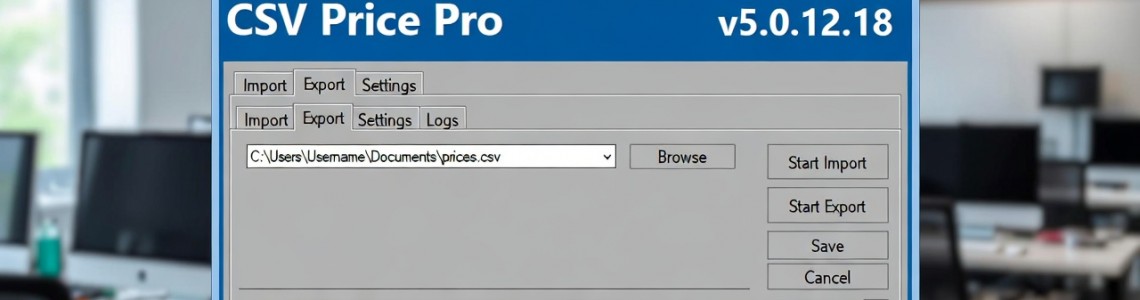
General information about the module
CSV Price Pro import/export is one of the most powerful and reliable tools for working with data in OpenCart. The latest 5.x versions are designed for OpenCart 3.x + PHP 7.4–8.1. License: one domain (including subdomains and test domains), 7-day trial and 30-day trial keys available.
Key Features (v5.0+):
- Import/export of goods with prices, balances, attributes, options, discounts, promotions, images
- Full support for multi-stores and multi-languages
- Automatic creation of missing categories, manufacturers, attributes
- Import images by URL (autoload)
- Two modes of working with attributes: combined ( ATTRIBUTES ) and separate fields
- Task Scheduler (CRON)
- Settings profiles (saving/loading)
- Operation log
- Export orders and clients
Your version 5.0.12.18 is one of the stable late builds of the 5.x branch (many bugs with PHP 8.x and large files have been fixed).
2. Module interface
After installation, the module appears in the menu Extensions → Modules → CSV Price Pro import/export .
Main tabs (from left to right):
- Main - general module settings
- Goods - Import/export of goods (most used)
- Categories - working only with categories
- Manufacturers - Import/Export of Manufacturers
- Clients - Export/Import Buyers
- Orders - export orders (sometimes import)
- Scheduler - Setting up automatic CRON tasks
- Log - a log of all operations (very useful for debugging)
- About the module - version, license, support contacts
On the Products → Import tab, you see exactly this screen.

3. Detailed description of product import settings
Here's a breakdown of each field on the import page (Products → Import):
| Field / Element | Default value / your screenshot | Description and recommendations |
|---|---|---|
| Upload profile | Import - Default Product Import | Select a saved profile. Buttons: refresh list, save, delete. Create your own profiles for different tasks! |
| Create a new profile | — | Enter a name → click the green "+". Very convenient for different providers. |
| File encoding | UTF-8 | Always use UTF-8 —it's the OpenCart standard. Problems only occur with Windows-1251. |
| CSV field separator | ; | The most reliable option is a semicolon (;). The comma (,) often breaks due to text in descriptions. |
| Localization | Russian | The language into which titles/descriptions are imported. For multilingual content, create separate files for each language. |
| Import mode | Just update (on the screen) | Options: Add Only / Update Only / Update and Add. The safest option for pricing is "Update Only." |
| Key field | Product Model | Which field to search for an existing product to update. The most reliable ones are: Product Model , SKU , Product ID . |
| Manufacturer Key field | Manufacturer | Which field to search for/create a manufacturer by. Typically, this is "Manufacturer" (name). |
| Import product ID from file | No | If the file has an ID column and you want to keep the original IDs, select "Yes" (rarely needed). |
| Separator for the CATEGORY field | ||
| Fill in parent categories | No | If "Yes," the product will be included in all parent categories of the path. This is usually not necessary. |
| Main menu for categories | Yes | Checks the "Add to top menu" box for main categories. |
| Show in categories | — | List of categories in which the product will be displayed additionally. |
| Ignore when updating checkboxes | Almost everything is included | Very important! If checked, the field won't be updated in "Update" mode. Useful for protecting prices, descriptions, etc. |
Recommended basic settings for updating prices/inventories:
- Mode: Update only
- Key field: Product Model or SKU
- Ignore everything except: QUANTITY , PRICE , SPECIAL , DISCOUNT
4. The most important CSV fields (for products)
Here is a table of the most frequently used fields (required in the top row of the CSV
NAME
| Field in CSV | Description | Example format | Necessarily? |
|---|---|---|---|
| ID | Product ID (only if you are importing) | 145 | No |
| Product name | iPhone 14 Pro Max | Yes | |
| MODEL | Model (the most reliable key field) | iphone-14-pro-max | Yes |
| SKU | Article | AP-IP14PM-128 | Recommended |
| MANUFACTURER | Manufacturer (generated automatically) | Apple | Yes |
| PRICE | Price | 5499.00 | Yes |
| QUANTITY | Remainder | 45 | Yes |
| CATEGORY | Category path (by row or by | ) | Electronics|Smartphones|Apple |
| DESCRIPTION | Full description (HTML is acceptable) | Great phone... | Recommended |
| IMAGE | Main image | catalog/iphone/14promax.jpg | Recommended |
| IMAGES | Additional images (comma separated) | catalog/a.jpg,catalog/b.jpg | No |
| ATTRIBUTES | Attributes (by row) | Color|Red Memory|256GB | No |
| SPECIAL | Promotional price | 1,999.00,2026-01-01,2026-02-28 | No |
| SEO_KEYWORD | SEO URL | iphone-14-pro-max | Recommended |
5. How to properly prepare a CSV file
- Export template → Products → Export → select the required fields → Export → get the perfect template.
- Open and edit only in LibreOffice Calc or Apache OpenOffice (not Excel!).
- When saving :
- Encoding: UTF-8
- Field separator: ; (semicolon)
- Text delimiter: " (double quotes)
- Checkbox: Quote all text cells
- Check in a text editor (Notepad++): the first line is the names of the fields with underscores ( NAME , PRICE , etc.).
6. Typical use cases
Scenario 1: Updating only prices and balances
- Key field → Product Model
- Mode → Update Only
- Check the "Ignore" boxes in all fields except PRICE and QUANTITY
- There are only 3 columns in CSV: MODEL ; PRICE ; QUANTITY
Scenario 2: Bulk adding new products from a supplier
- Mode → Update and Add
- Key field → SKU or Model
- Enable automatic creation of categories and manufacturers
- CATEGORY field with full path
Scenario 3: Importing Images by URL
- In the IMAGE and IMAGES fields, write the full URL: https://supplier.com/img/prod1.jpg
- The module will download and save itself in catalog/
7. Scheduler (CRON) - automatic update
- Create an import profile (e.g. "Prices_daily")
- Go to the Scheduler
- Add a task → select a profile → specify a period (daily at 03:00)
- Copy the CRON command (it looks something like this): /usr/bin/php /home/user/public_html/admin/index.php?route=extension/module/csvprice_pro/cron&profile_id=5&key=YOUR_SECRET_KEY
- Add to CRON on your hosting (cPanel → Cron Jobs)
8. Common mistakes and their solutions
- Error: "File encoding is not UTF-8" → resave as UTF-8 without BOM
- Products are not updating → check the key field and the "Ignore" checkboxes
- Images are not loading → check the permissions on the image/catalog folder (755–777), enable allow_url_fopen in php.ini
- 504 Gateway Timeout → increase max_execution_time to 600–1200 sec
- Empty log → see Log inside the module
Module in the topic
Leave a Comment