
Is Your OpenCart Store Slow?

⚡ Is Your OpenCart Store Slow? 6 Ways to Improve Performance Without Upgrading Your Server!
Are your product categories loading slowly? Do product pages take too long to open? Are customers waiting for the shopping cart to respond?
Before upgrading your VPS or switching hosting providers, investigate the cause. The problem may be related to oversized images, poorly optimized extensions, database queries, or PHP configuration.
Let's look at six practical ways to improve your OpenCart store's performance!
???? 1. Identify the Cause of Slow Performance
Before changing anything, test several pages:
Your homepage.
A category with many products.
An individual product page.
The shopping cart and checkout.
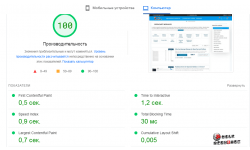
You can use Google PageSpeed Insights and your browser's developer tools to investigate performance.
Pay attention to specific issues, such as server response time, oversized images, render-blocking resources, and slow-loading page elements.
Important: A low performance score doesn't automatically mean your server is underpowered. Identify the bottleneck before making changes.
???? 2. Optimize Product Images
Large images can significantly increase the amount of data visitors need to download.
Here are some practical improvements:
Resize images to appropriate display dimensions.
Use modern formats such as WebP when supported by your configuration.
Compress images without noticeably reducing visual quality.
Avoid serving full-resolution originals when smaller versions are sufficient.
Consider lazy-loading images below the initial viewport where appropriate.
Always check image quality after compression. Excessive compression can make product photos look unprofessional.
⚙️ 3. Review Your Caching Configuration
Caching can reduce repeated processing by reusing previously generated data.
However, OpenCart installations can use different caching mechanisms, and not every type of caching improves every page.
Review the following:
Template and component caching where supported.
Data caching provided by your version and extensions.
Browser caching for static resources.
Compatibility with the cart, customer account, and checkout pages.
Do not enable full-page caching without checking dynamic pages. Customers must not see another visitor's cart, incorrect prices, or outdated information.
After changing caching settings, clear the relevant cache and test the main shopping journey.
???? 4. Audit Your Installed Extensions
Extensions can introduce additional database queries, load JavaScript and CSS files, or communicate with external services.
If your store became slower after installing an extension, investigate its impact.
A practical approach:
List recently installed extensions.
Compare page performance before and after changes.
Review error logs and available profiling tools.
Check which scripts and stylesheets load on each page.
Test suspicious changes on a staging copy of your store.
Avoid disabling extensions on a live store without checking their purpose. They may control payments, shipping, pricing, or other essential features.
???? 5. Check PHP-FPM, Nginx, and Server Resources
If the problem appears to be server-related, inspect resource usage and request processing times.
On an Ubuntu server, you can start with these commands:
htop
Displays CPU activity and memory usage.
free -h
Shows memory usage and available memory.
df -h
Displays filesystem capacity and disk usage.
You should also review:
PHP-FPM worker configuration.
Nginx and PHP error logs.
Slow database queries.
Resource exhaustion and service errors.
Whether your server configuration matches your store's actual workload.
Do not increase the number of PHP-FPM workers without considering available memory. Each worker consumes resources, so the configuration must match your server's capacity.
???? 6. Review CSS, JavaScript, and Third-Party Scripts
Analytics tools, live chat widgets, advertising scripts, and additional libraries can increase page-loading time.
Check the following:
Which scripts are actually necessary.
Whether non-critical resources can be loaded later.
Whether duplicate libraries are being loaded.
Whether your theme supports CSS and JavaScript minification.
Whether optimization changes affect website functionality.
Minification reduces file size, but it does not guarantee a noticeable performance improvement. The results depend on your particular store.
✅ Where Should You Start?
If your OpenCart store is slow, follow a structured process:
Measure the performance of several pages.
Optimize product images.
Review extensions and third-party scripts.
Check available caching options.
Investigate PHP-FPM, Nginx, and database performance.
Repeat your measurements and verify that the cart, prices, and checkout still work correctly.
The golden rule: diagnose first, optimize second. Otherwise, you may spend money upgrading your server without fixing the real problem.
???? How does your OpenCart store perform?
What do you usually need to optimize: images, caching, PHP-FPM, the database, or third-party extensions?
Share your OpenCart version and server configuration in the comments. Let's discuss where optimization efforts should begin in different situations!
#OpenCart #WebsiteSpeed #PerformanceOptimization #PHP #Nginx #VPS #OpenCartHelp
Module in the topic
Leave a Comment